
Install GoFetch on Opera, Brave, Vivaldi and Other Chromium Browsers
GoFetch is not limited to Google Chrome. Because it is built on the standard Chromium extension platform (Manifest V3), it also works perfectly on Microsoft Edge, Brave, Vivaldi, Opera and most other Chromium-based browsers. To help you get up and running in any of these environments, this guide covers two installation methods: installing online from the Chrome Web Store, and installing manually with the offline zip package. Either way, the whole process takes only a few minutes and requires no technical background.
What is a Chromium-based browser?
Chromium is the open-source browser engine led by Google, and it is the core underneath Chrome. Many browsers — including Edge, Brave, Vivaldi, Opera and Arc — are built on top of it. They share the same extension format and the same extension APIs, which is why an extension developed for Chrome usually runs on all of them without any modification. If you are not sure which engine your browser uses, a quick rule of thumb is that anything other than Firefox (Gecko) and Safari (WebKit) is almost certainly Chromium-based today, and can follow this guide.
Method 1: Install from the Chrome Web Store (recommended)
Most Chromium-based browsers can install extensions directly from the Chrome Web Store. This is the recommended method, because store-installed extensions update automatically in the background: whenever we publish a new version with bug fixes or new features, your browser picks it up on its own, with nothing for you to do. Brave and Vivaldi support the Chrome Web Store out of the box, and Edge can install from it too after enabling "Allow extensions from other stores" on its extensions page.
GoFetch is now live on theChrome Web Store— open the listing in your browser and click "Add to Chrome" (the button label varies slightly by browser) to install it. If you are using Microsoft Edge, you can also install it from theEdge Add-ons store. If you previously installed GoFetch with the zip package in Method 2, you can remove it and reinstall from the store to start receiving automatic updates.
Method 2: Offline zip package (load unpacked)
- Download the zip package from the GoFetch homepage and extract it to a folder you will keep permanently — for example, a folder named
gofetchinside your Documents directory.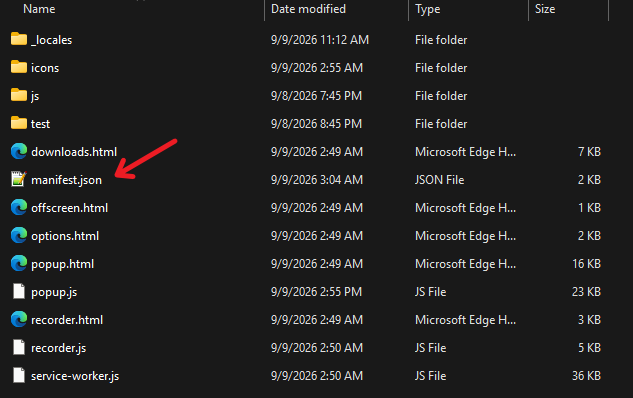
As the screenshot above shows, the extracted folder should contain subfolders such as
_locales,iconsandjs, several HTML files, and — most importantly — a file namedmanifest.json, highlighted by the arrow. The manifest is the extension's identity card: it tells the browser the extension's name, version, permissions and entry points. The browser loads the extension from this folder every time it starts, so do not move, rename or delete it afterwards. If you cannot see manifest.json at the top level of the folder, you have probably extracted one level too deep — pick the folder that directly contains it. - Open the extensions page of your browser. The quickest way is to type the address straight into the address bar, exactly as you would type a website URL:
- Chrome:
chrome://extensions - Microsoft Edge:
edge://extensions - Brave:
brave://extensions - Vivaldi:
vivaldi://extensions - Opera:
opera://extensions
- Chrome:
- Turn on Developer mode:

On every Chromium-based browser this is a toggle in the top-right corner of the extensions page, labeled "Developer mode", as the arrow in the screenshot above indicates. Flipping this switch changes nothing about your day-to-day browsing — it simply unlocks the three extra buttons visible at the bottom left of the screenshot: "Load unpacked", "Pack extension" and "Update". The one we need is the first. It is called "developer" mode because this is the workflow extension authors use to test work in progress, but it works just as well for installing an extension from a local folder.
- Click "Load unpacked" and select the folder you just extracted:

The button is the leftmost of the three, marked by the arrow in the screenshot. A file-picker dialog will open; navigate to the folder from step 1, select the folder itself — not any file inside it — and confirm. The browser is asking for the directory that contains manifest.json. If you pick the wrong level, it will show an error such as "Could not load manifest"; simply try again with the correct folder.
- Once added, GoFetch appears in the extensions list:
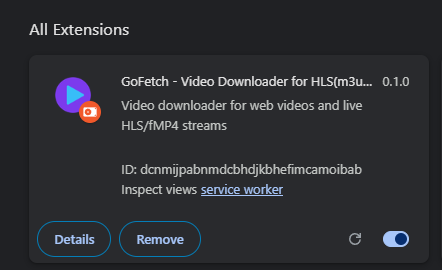
The screenshot shows what the installed card looks like: the extension's name and purple icon at the top, its version number (0.1.0 here) and a short description, followed by its extension ID and a "service worker" link for its background process. The blue toggle at the bottom right of the card should be switched on; you can click it at any time to temporarily disable the extension without uninstalling it. If you can see this card, the installation is complete.
Two things to keep in mind with this method. First, extensions loaded unpacked do not update automatically — to upgrade, download the newer zip, extract it over the same folder (or load the new folder again), and the new version replaces the old one. Second, some browsers show a "developer mode extensions" warning banner on startup; this is the browser's standard reminder that an extension was installed outside a store review process. It is expected, does not affect functionality, and can simply be dismissed.
To verify that everything works, open any page containing a video, press play, and click the GoFetch icon in the toolbar — you may want to pin it first via the puzzle-piece menu so it stays visible. If the popup lists the video resource being played, the extension is fully operational.
FAQ
Will GoFetch update automatically?Yes if installed from the Chrome Web Store; no if installed from the zip package — in that case, download the latest zip and load it again to upgrade.
Is there any functional difference between browsers?No. All features — sniffing, HLS downloading and merging, blob/MSE recording — work identically on every supported Chromium-based browser.
Can I use GoFetch on Android?Some Android browsers (such as Lemur Browser) support installing desktop extensions. GoFetch is designed and tested for desktop, so mobile use is not officially supported, but you are welcome to try.