
How to Download m3u8 Videos with GoFetch
Are you looking for a way to download m3u8 videos to your computer? If so, this article will help. One thing to note first: the method described here works on PC only. If you want to download m3u8 videos on a mobile device, this article won't be able to help you.
In fact, m3u8 is not a video format at all — it is a plain text file that acts as an index for streaming video, listing the addresses of a series of video segments. Downloading those segments one by one and merging them into a complete video file is a tedious job, so you need a tool to do it for you. This article shows how to download m3u8 videos with the GoFetch browser extension: it downloads every segment from the m3u8 playlist and merges them into an MP4 file, making it easy to save m3u8 videos.
Step 1: Install the extension
If you have already installed GoFetch, you can skip this step. If not, install it from theChrome Web Store— or, if you are using Microsoft Edge, from theEdge Add-ons store. For other Chromium-based browsers, follow this guide:Install GoFetch on Opera, Brave, Vivaldi and Other Chromium Browsers.
A note on Firefox: since Firefox has a relatively small user base and its add-on store review process is complicated, GoFetch does not support Firefox for now. We recommend using Google Chrome or another Chromium-based browser.
Step 2: Pin the extension to the toolbar
Once installed, it is a good idea to pin the extension to the toolbar so you can always see its capture status. Click the puzzle-piece icon in the top-right corner of the browser, find GoFetch in the list, and click the pin icon next to it:

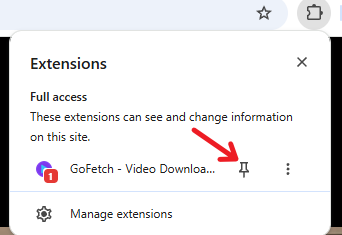

Once pinned, you should see GoFetch's purple icon in the top-right corner of your browser.
Step 3: Capture the m3u8 video
Open the page containing the m3u8 video and start playing it:
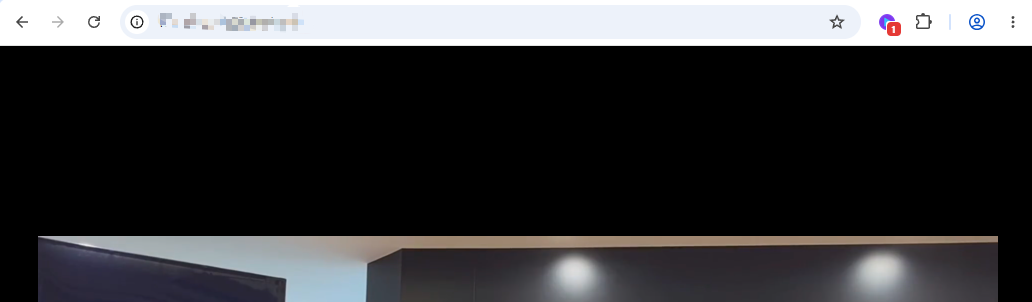
The extension captures the video resources on the page and shows a numeric badge on its icon, indicating how many resources have been captured. Click the icon to see the list of video resources found on the page:

You may see several m3u8 entries in the list. Common reasons include:
- Video ads on the page may also use m3u8 files and get captured alongside;
- The target video offers multiple resolutions: the browser first loads a master playlist (usually named master.m3u8) containing the URLs of m3u8 files at different resolutions, then loads the one suited to your network conditions. Every m3u8 file that gets loaded is captured by the extension, so several entries appear in the list;
- On sites that serve video and audio separately, one resolution may come with several audio tracks, and you can pick the audio you want.
At this point you can identify the video you need by checking the file size and playing the preview. In the list, m3u8 entries have a purple play button, while direct-link files such as MP4, WebM and MP3 have a blue one.
Step 4: Start downloading
Once you have decided on the target, click the "Download" button on its entry:
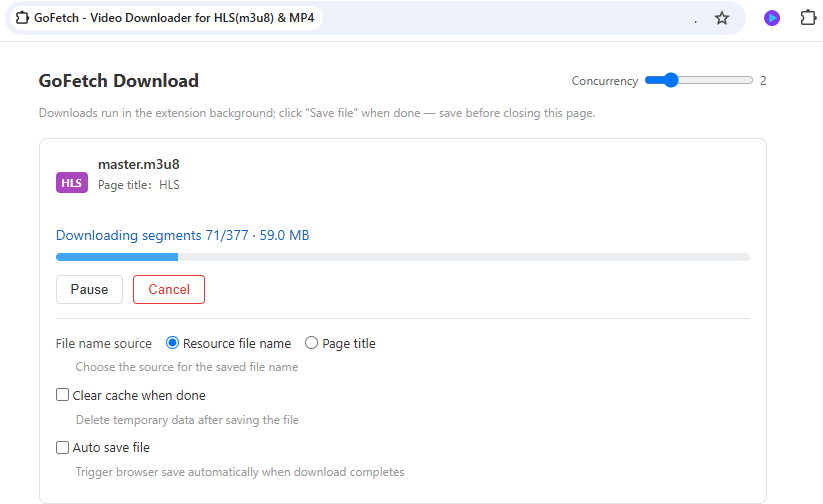
The extension opens a new tab to download and process the video data. This tab serves as the download control panel, where you can watch the progress and adjust settings as needed — for example changing the concurrency, or pausing and canceling the task.
Step 5: Download complete — save the file
The entire downloading and conversion process is handled automatically by the extension, with no manual work required:
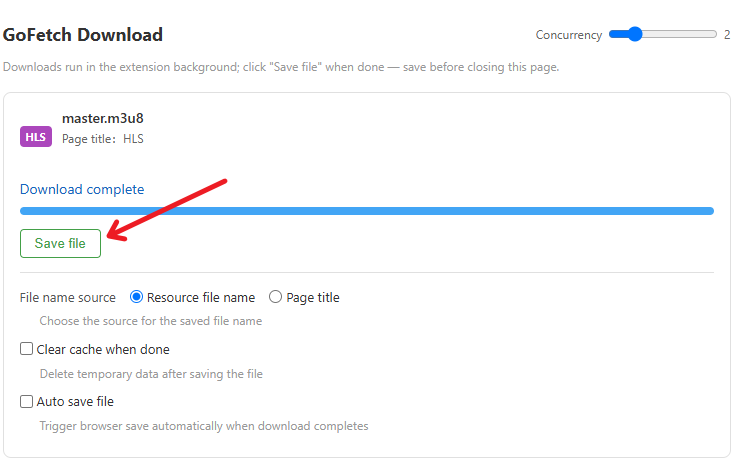
When the download finishes, a "Save File" button appears. Click it to save the video to your computer in MP4 format. If the video was originally delivered as a segmented m3u8 stream, GoFetch has already merged and converted it for you — what you get is a single complete file that plays anywhere.